
Media Center Setup Guide
This page explains the basic setup steps for Media Center: where to edit the JSON configuration, how to set up the OMDb API key for artwork and movie metadata, how to make the MCE green button launch the app, and how to enable Windows Media Player Legacy support on Windows.
1. Edit the JSON Configuration
Media Center reads its local settings from config.json in the main application folder.
This is the file you edit to change media library paths, ZIP code, screensaver options, and metadata settings.
Common values you will usually change:
media_paths.moviesfor your Movies foldermedia_paths.tvfor your TV foldermedia_paths.musicfor your Music foldermedia_paths.audiobooksfor your Audiobooks foldermedia_paths.photosfor your Photos folderzip_codefor the weather locationomdb_api_keyfor movie metadata and poster lookups
\\\\SERVER\\Share\\Folder\\ if your media lives on another machine.
2. Get an OMDb API Key
Media Center uses OMDb for movie metadata and cover art lookups during scanning. You can request an API key from the official OMDb site: https://www.omdbapi.com/apikey.aspx
- Open the OMDb API key page.
- Choose the free plan if it meets your needs.
- Enter your email and complete the request.
- Copy the key you receive.
- Paste it into
config.jsonunderomdb_api_key.
3. Redirect the MCE Green Button to Launch Media Center
Many Media Center remotes send the green button as Win + Alt + Enter.
The app already handles that combination once it is running, but to launch the app from anywhere,
you can use a small AutoHotkey script.
- Install AutoHotkey v2.
- Create a file named
LaunchMediaCenter.ahk. - Paste the script below and update the path if needed.
- Put the script in Startup or compile it as an EXE.
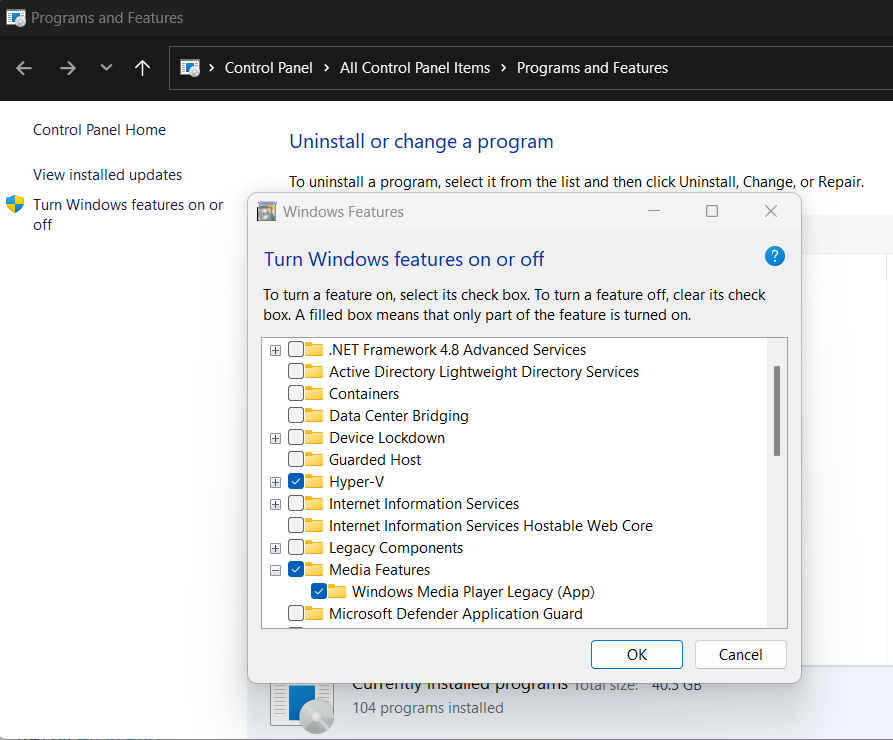
4. Enable Windows Media Player Legacy Support
Some systems need legacy Windows media components enabled for reliable playback support.
- Open Control Panel.
- Go to Programs > Programs and Features.
- Select Turn Windows features on or off.
- Expand Media Features.
- Enable Windows Media Player Legacy if it is available on your system.
- Click OK and restart Windows if prompted.
5. Reference Images
These branding assets are included here as a quick visual reference for the setup and app style.